
Use the correct zone
Parking rules and rates are location-specific. Enter the lot or zone number shown on the sign where the vehicle is parked.
At participating CPIS-managed properties, Passport Parking provides a convenient way to start and manage a paid parking session from a mobile device or available web checkout.
For participating CPIS-managed properties, use the weekly permit button to open the configured parking purchase or guest-checkout service. Confirm the location or zone, licence plate and permit dates before completing payment.
Use the lot or zone number printed on the parking signs at your location. Make sure the licence plate in the app matches the vehicle parked on site.
Download the app. Install Passport Parking from the Apple App Store or Google Play Store, or use the web option provided for the location.
Create an account or sign in. Confirm your contact and payment information.
Enter the lot or zone. Use the number displayed on the property’s parking sign.
Select your vehicle. Enter the correct licence plate and province/state of registration where requested.
Select parking time or permit. Choose the option available for that property.
Complete payment. Confirm the session before leaving the vehicle. The parking authorization is electronic.
Parking rules and rates are location-specific. Enter the lot or zone number shown on the sign where the vehicle is parked.
A wrong plate can make a valid payment appear missing during enforcement. Confirm the plate before starting the session.
Check the parking duration, rate and confirmation screen. If extensions are offered, they are subject to the rules of the property.
Passport Parking supports the payment and digital parking-session experience. CPIS manages the broader property program, which can include rules, signs, permits, enforcement, notices, disputes, reporting and client administration.
Explore Parking Management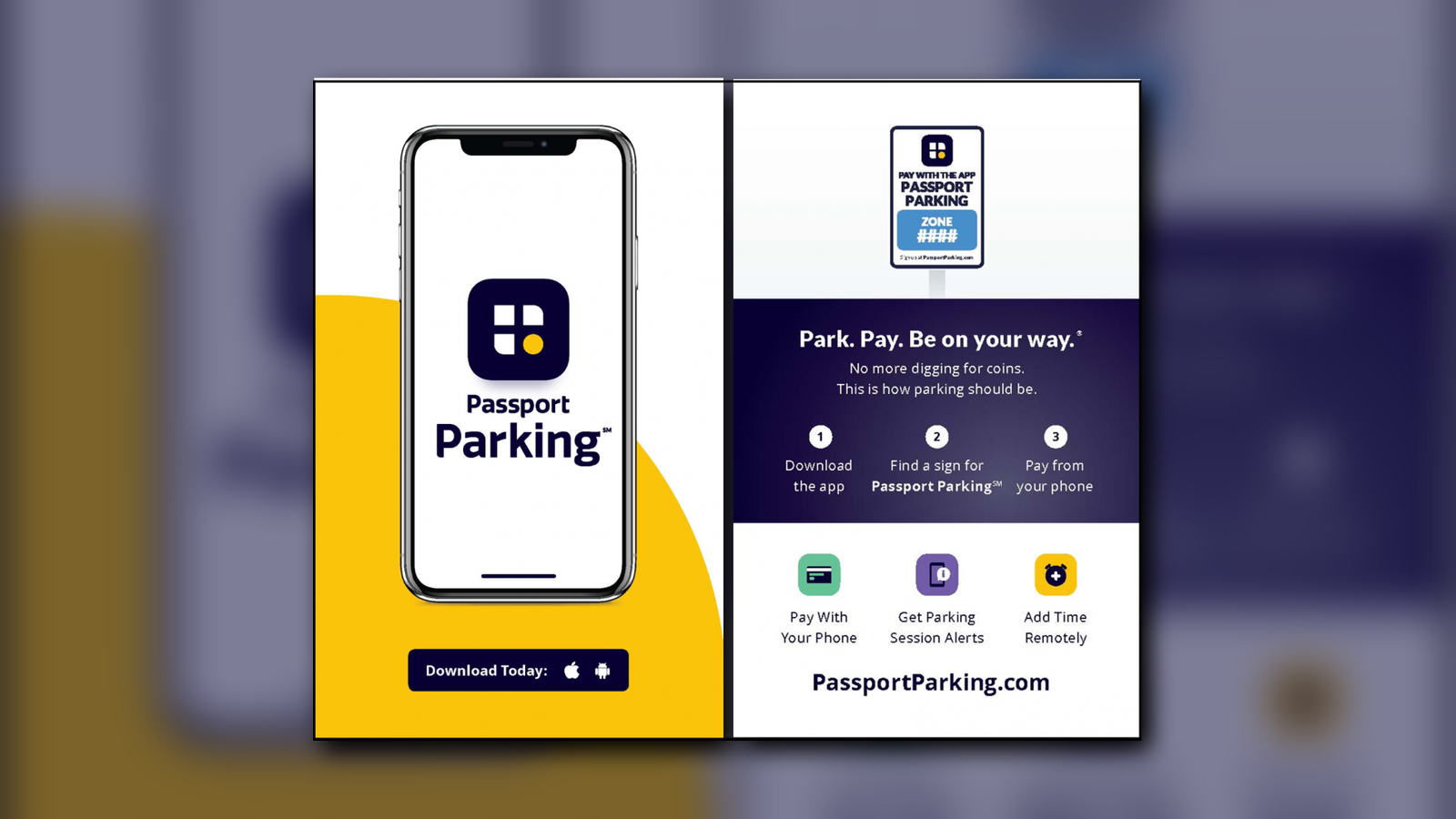
Use the Parking Permits & Notices page for payment, dispute and evidence information.